

Features & Guide

A few things worth knowing once you've downloaded Litepad. Small features that make a big difference in your day-to-day.

First thing to do

Set Litepad as Your Default Markdown App

Make every .md file open as a clean, readable document — no more raw text in Xcode or TextEdit.

  1. Right-click any .md file in Finder.
  2. Choose Get Info.
  3. Under Open With, select Litepad.
  4. Click Change All to apply it to every markdown file.
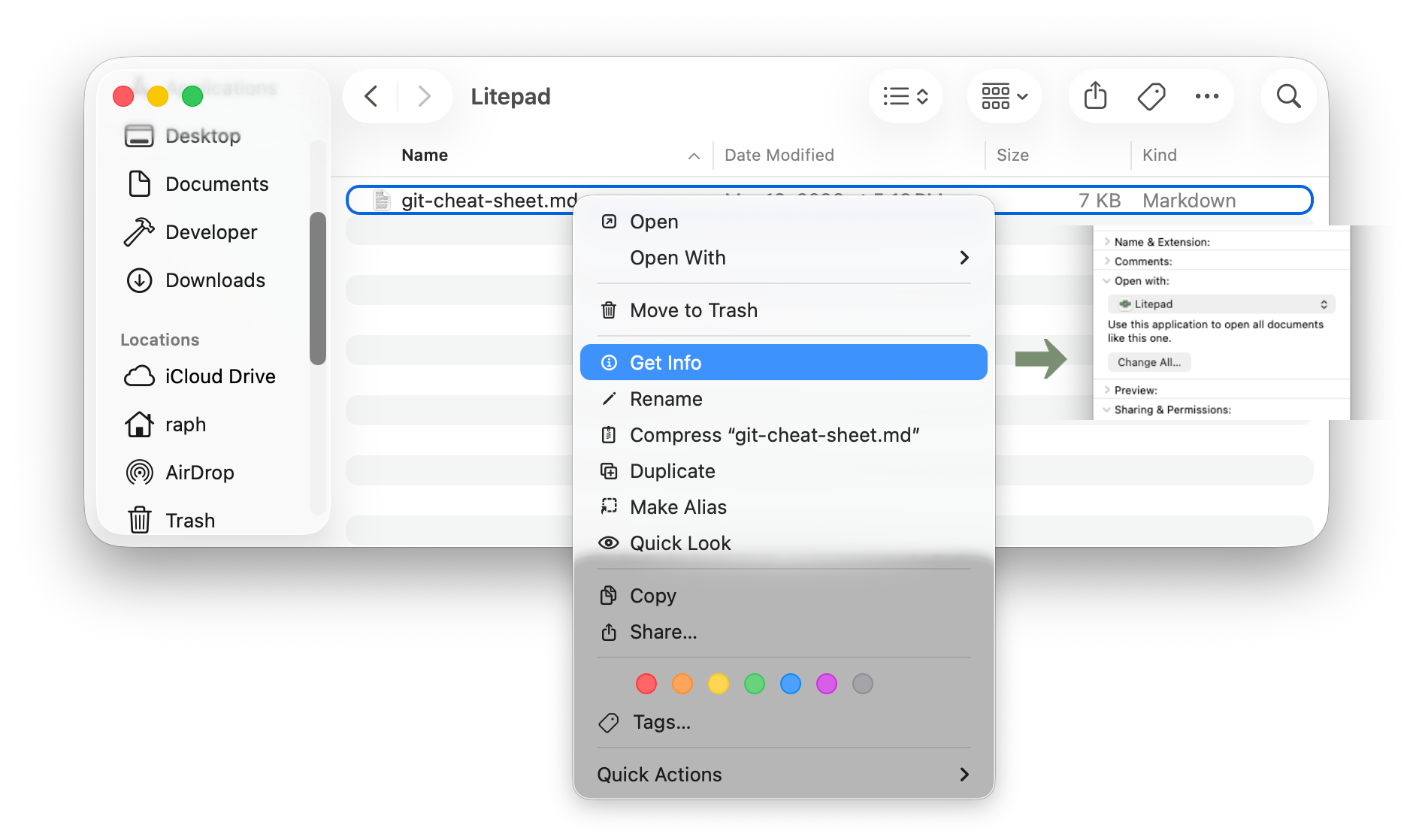
Finder context menu showing Get Info, with the Open With panel set to Litepad and Change All button

New File from Clipboard

Copy a response from ChatGPT or Claude and create an instant readable document — no file picker, no saving first.

Ctrl + Cmd + N

Float on Top

Pin a spec or README above your IDE while you code. Keeps a reference doc visible without constantly switching windows.

Window → Float on Top

Table of Contents

Long AI-generated docs can be hard to scan. Open the Table of Contents to see every heading and jump to any section.

Shift + Cmd + O

Dark Mode & Themes

Litepad follows your system appearance automatically. You can also pick a theme manually in preferences to match your setup.

Cmd + , Litepad → Settings

Print & Export to PDF

Need to share a doc with someone who doesn't use markdown? Print or save as PDF from the rendered preview.

Cmd + P

Copy Path & Reveal in Finder

Quickly grab the file path to paste into your terminal or IDE, or jump straight to the file's location in Finder.

Cmd + R